
How to Install a Wireless CarPlay Adapter: Step-by-Step Guide with Pictures (2026)
The full visual installation guide — from finding the right USB port to your first automatic connection. Works for all major car brands and adapter models.

The full installation is five steps. Most of the five minutes is simply waiting for Bluetooth to pair — the rest is plug-and-done.
Before you start
- Your car has factory-installed wired CarPlay (check our compatibility list)
- Your iPhone is iPhone 6 or newer, running iOS 9 or above
- Bluetooth and Wi-Fi are both enabled on your iPhone
- You have the wireless CarPlay adapter in hand
- You have 5 minutes — no tools, no technical skill required
That’s genuinely all you need. No drilling, no wiring, no workshop visit. If your car is on our compatibility list and you have a compatible iPhone, the adapter will work.
Where is the CarPlay USB port in your car?
This is the one step that confuses most people — because cars often have multiple USB ports, but only one (or two) support CarPlay. Using the wrong port is the most common reason CarPlay doesn’t appear.
| Brand | CarPlay USB Port Location | USB Type |
|---|---|---|
| Volkswagen | Centre armrest storage cubby | USB-A (MIB2) / USB-C (MIB3) |
| BMW | Centre armrest storage tray | USB-A (pre-2020) / USB-C (post-2020) |
| Mercedes-Benz | Centre console below gear selector | USB-A or USB-C |
| Audi | Centre armrest storage | USB-A (MIB2) / USB-C (MIB3) |
| Toyota / Lexus | Below centre screen or console tray | USB-A |
| Honda | Below head unit or centre console | USB-A |
| Ford | Centre console stack or armrest | USB-A |
| Hyundai / Kia | Centre console below gear selector | USB-A |
| Porsche | Centre console storage | USB-A or USB-C |
Look for a USB port labelled with a smartphone icon, a CarPlay logo, or the text “Media.” If unsure, plug into each port in turn with your current cable — CarPlay will only launch from the correct port. Passenger-side and rear USB ports are almost always charging-only.
The 5-step installation
Insert the wireless CarPlay adapter firmly into your car’s designated CarPlay USB port (see table above for your brand). The adapter should sit flush or slightly proud of the port — it won’t damage anything if it sticks out a little. After about 5 seconds, a small LED on the adapter will begin blinking.

On your iPhone, go to Settings → Bluetooth. Make sure Bluetooth is toggled on. Wait a few seconds and the adapter’s device name will appear in the “Other Devices” section — it’s usually named “Carplay,” the brand name, or a short code. Tap it to connect.

Within 5–10 seconds of the Bluetooth pairing completing, your car’s factory screen will switch to the familiar CarPlay interface. Apple Maps, Spotify, Siri, iMessage — everything works exactly as it did with the cable, now completely wireless. The LED on the adapter will switch from blinking to solid.

Most wireless CarPlay adapters have a companion app (iOS and Android) that lets you adjust settings: switch between 2.4GHz and 5GHz Wi-Fi, check firmware version, and run diagnostics. Download it now while everything is fresh, and switch to 5GHz mode if you’re in an urban area — it dramatically reduces dropouts.
You’re done. From this point on, every time you start your car and your iPhone is nearby, CarPlay connects and launches automatically — within 5 seconds of the engine starting. No tapping, no plugging, no cable. Just get in and drive. The adapter handles everything in the background.

Brand-specific installation notes
The five steps above work universally, but a few brands have quirks worth knowing:
- BMW (iDrive 6): Navigate to Communication → Apple CarPlay → Activate on first setup. One-time step only.
- Volkswagen (MIB2): If CarPlay doesn’t auto-launch, press the Home button on the head unit or tap the CarPlay tile in the media menu.
- Mercedes-Benz (MBUX): Open MBUX media and select “CarPlay” from the source list on first use.
- Audi (MMI): Go to MAIN MENU → Media → Sources → Apple CarPlay on first use.
- Toyota / Honda: CarPlay may prompt you to confirm on the car screen the first time — tap “Allow” if asked.
Stuck? Check our FAQ page for brand-specific troubleshooting, or see our full CarPlay Not Working guide with 12 proven fixes.
Which adapter should you buy?
If you haven’t bought an adapter yet, here’s our top pick — the one we recommend for most drivers:
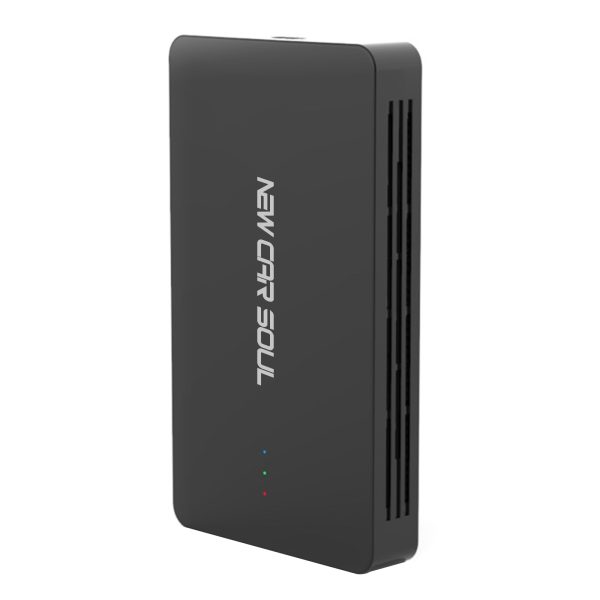
Wireless CarPlay + Android Auto + streaming via hotspot. One-time setup, auto-connects every drive. Compatible with 80+ car brands. 1-year warranty and lifetime OTA firmware updates.
Want to compare all options? Read our full Wireless CarPlay Adapter Buyer’s Guide 2026 — five adapters tested and ranked.
Frequently asked questions
The initial setup takes approximately 3–5 minutes — mostly the one-time Bluetooth pairing. Every subsequent drive is fully automatic and takes 5–10 seconds from engine start to CarPlay launching on your screen.
None. A wireless CarPlay adapter is entirely plug-and-play. You only need the adapter itself, a compatible car, and your iPhone. No screwdrivers, no wiring, no technical knowledge required.
First, ensure both Bluetooth and Wi-Fi are enabled on your iPhone. Then confirm your iPhone is paired to the adapter in Bluetooth settings. If CarPlay still doesn’t appear, try selecting it manually from your car’s infotainment media source menu — this is usually only needed on the very first connection.
The adapter must stay in the same designated CarPlay USB port. If you unplug and move it to a different port, you may need to re-establish the Bluetooth pairing. Leave it permanently in the CarPlay port for the seamless auto-connect experience.