CarPlay Not Working? 12 Fixes That Actually Work (2026)
Before you book a dealer appointment — try these. We’ve compiled the 12 most effective fixes for CarPlay connection problems, sorted from easiest to most advanced.
By New Car Soul Team•April 10, 2026•10 min read•2026 Updated
CarPlay problems are almost always fixable without a dealer visit. Work through these 12 fixes in order — most issues resolve within the first four steps.
🏷️ Fix tags explained
Each fix is tagged: Wired (cable setups only), Wireless (adapter setups only), or Both (applies to all CarPlay setups).
Quick diagnostics: check these first
Before diving into individual fixes, run through this quick table. These five checks resolve the majority of CarPlay issues in under two minutes:
Check
What to look for
Quick fix
CarPlay enabled on iPhone?
Settings → General → CarPlay
Toggle on if disabled
Correct USB port?
CarPlay port (not charging-only)
Try each USB port in your car
iPhone unlocked?
CarPlay won’t launch on locked iPhone
Unlock your phone first
Do Not Disturb while driving?
iPhone may block CarPlay
Settings → Focus → Driving → turn off
iOS up to date?
Settings → General → Software Update
Install any available updates
Still not working after those checks? Work through the fixes below, starting from the top.
Fixes 1–6: Wired CarPlay problems
1
Replace your USB cable
● Wired setups
This is the single most common cause of CarPlay problems. Third-party cables, damaged cables, and cables that are “charging only” (not data-capable) all prevent CarPlay from working. Use an Apple MFi-certified Lightning or USB-C cable. If you’re not sure, try the cable that came in the iPhone box — that one always works.
2
Clean the USB port
● Wired setups
Dust and lint in your car’s USB port can cause intermittent connections. Use a dry toothpick or compressed air to carefully clean the port. Never use water or metal objects. This fix is surprisingly effective on older vehicles with heavily used USB ports.
3
Restart the infotainment system
● Wired setups
Most car infotainment systems can be restarted without turning off the car. The method varies by brand: on BMW hold the volume knob for 10 seconds; on VW go to Settings → System → Restart. Check your car’s manual for the specific method. A fresh start often resolves phantom CarPlay errors.
4
Forget and re-pair CarPlay in iPhone settings
● Wired setups
Go to Settings → General → CarPlay on your iPhone. Tap your car’s name, then tap “Forget This Car.” Reconnect by plugging in your cable again. This forces a fresh pairing and often resolves persistent connection failures that have built up over time.
5
Try a different USB port in your car
● Wired setups
Many cars have multiple USB ports but only one (or two) are CarPlay-capable. The CarPlay port is usually the one closest to the gear shift or labelled with a phone/CarPlay icon. Passenger-side and rear USB ports are usually charging-only — plugging into them for CarPlay won’t work.
6
Update your car’s infotainment software
● Wired setups
Car manufacturers release infotainment updates that often fix CarPlay compatibility bugs — especially after major iOS releases. Check your brand’s website or contact your dealer to see if a head unit update is available. VW, BMW, and Mercedes in particular release updates in response to iOS changes.
Fixes 7–10: Wireless CarPlay problems
7
Switch the adapter to 5GHz Wi-Fi band
● Wireless setups
Wireless CarPlay adapters use Wi-Fi to stream data from your phone to the car screen. The 2.4GHz band is crowded in urban areas and can cause dropouts. Open the adapter’s companion app and switch to 5GHz mode. This single change eliminates the majority of wireless dropout issues.
8
Update the adapter firmware
● Wireless setups
Wireless CarPlay adapters receive firmware updates that fix bugs and improve iOS compatibility. Open the companion app (usually available for iOS and Android) and check for available updates. Our New Car Soul adapters receive lifetime OTA updates — ensure you’re running the latest version.
9
Re-pair the adapter’s Bluetooth connection
● Wireless setups
On your iPhone, go to Settings → Bluetooth and find the adapter in your paired devices list. Tap the info icon and select “Forget This Device.” Then unplug the adapter from your car, wait 10 seconds, plug it back in, and pair again from scratch. This resets the wireless handshake that CarPlay relies on.
10
Ensure iPhone Wi-Fi and Bluetooth are both on
● Wireless setups
Wireless CarPlay requires both Bluetooth and Wi-Fi active on your iPhone simultaneously. It’s a common mistake to toggle one off to save battery. The adapter uses Bluetooth for the initial handshake and Wi-Fi for the actual data stream — disabling either breaks the connection.
Fixes 11–12: Problems affecting all CarPlay setups
11
Reset network settings on your iPhone
● All setups
Go to Settings → General → Transfer or Reset iPhone → Reset → Reset Network Settings. This clears all saved Wi-Fi passwords, Bluetooth pairings, and CarPlay connections. Note: you’ll need to reconnect to Wi-Fi networks afterwards. This is a nuclear option — but it resolves deep-seated connectivity bugs that individual fixes can’t touch.
12
Check for iOS restrictions blocking CarPlay
● All setups
If your iPhone is managed by an employer or school (MDM profile), CarPlay may be restricted by policy. Go to Settings → General → VPN & Device Management — if there’s an MDM profile, CarPlay restrictions may be in place. On personal phones, check Settings → Screen Time → Content & Privacy Restrictions → Allowed Apps and ensure CarPlay is permitted.
If you’ve worked through all 12 fixes and CarPlay still isn’t working reliably — it might be time to consider whether the underlying wired system needs upgrading rather than repairing.
Still not fixed? Consider upgrading to wireless
If wired CarPlay is consistently unreliable — dropping out, failing to connect, or requiring multiple replug attempts — the issue is often the car’s USB port or the cable degrading over time. At that point, going wireless eliminates the problem entirely.
Our wireless adapters bypass the physical USB connection that causes most wired CarPlay headaches. Once paired wirelessly, there’s no cable to damage, no port to clean, and no connection to wrestle with every morning.
Recommended Upgrade
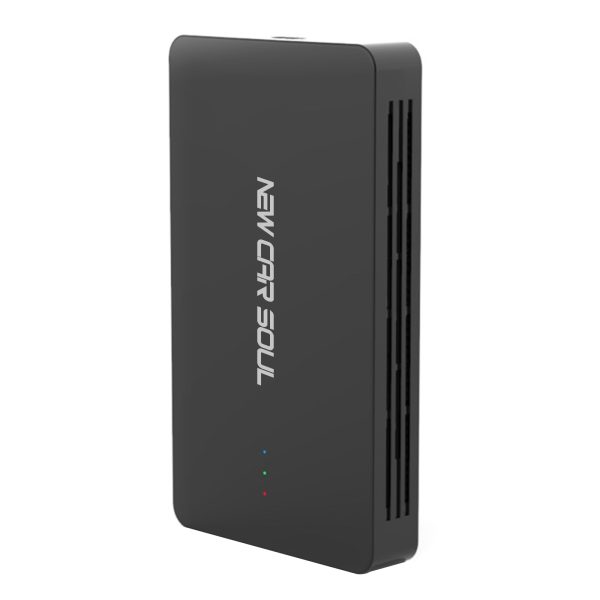
New Car Soul 3-in-1 Multimedia Video Box
Converts your wired CarPlay to wireless — eliminating cable and USB port issues permanently. Also adds Android Auto and streaming. Auto-connects on every drive.
The most common causes: a damaged or low-quality USB cable, Wi-Fi interference on the 2.4GHz band (for wireless), outdated iOS, or CarPlay being restricted in iPhone settings. Start with Fix #1 (cable) for wired, or Fix #7 (switch to 5GHz) for wireless.
Why is CarPlay not showing up on my car screen?
Check that CarPlay is enabled in Settings → General → CarPlay on your iPhone. Also ensure you’re using the correct USB port — many cars have multiple USB ports, but only one is CarPlay-designated. See Fix #5 for details.
Does iOS 18 cause CarPlay problems?
Some early builds of iOS 17 and iOS 18 introduced CarPlay connectivity bugs that Apple later patched. If you started having issues after a major iOS update, check for newer iOS updates. Also check if your car’s head unit software needs updating to match the new iOS.
Can I use CarPlay without unlocking my iPhone?
CarPlay requires the iPhone to be unlocked when first connecting. Once CarPlay is active, you don’t need to keep the phone unlocked. However, if your phone locks and CarPlay disconnects, you’ll need to unlock it to reconnect.
Tired of wrestling with cables?
Go wireless — and solve CarPlay connection problems permanently. Free shipping, 30-day returns.