

How to Watch Netflix & YouTube on Your Car Screen (With a CarPlay AI Box)
Apple CarPlay can’t stream video — but there’s a simple solution that adds Netflix, YouTube, and more to any factory screen in under ten minutes.

With a CarPlay AI Box, your factory car screen becomes a full Android entertainment system — Netflix, YouTube, Spotify, and more.
Why Apple CarPlay can’t stream video
Apple CarPlay is designed to be a safe, distraction-minimised interface for driving. Apple explicitly blocks video playback while CarPlay is active — this includes Netflix, YouTube, Disney+, and any other video app. It’s a deliberate safety decision, not a technical limitation.
The same applies to Android Auto. Neither Google nor Apple allow video streaming through their respective car platforms. If you’ve been trying to find a CarPlay app that lets you watch Netflix, it doesn’t exist — and won’t.
A CarPlay AI Box runs a separate Android OS on your factory screen, independent of CarPlay. CarPlay is still there when you want it — but the AI Box also gives you a full Android environment where Netflix, YouTube, and any other app run freely. See our guide comparing CarPlay AI Box vs Wireless Adapter for the full picture.
The solution: CarPlay AI Box
A CarPlay AI Box plugs into your car’s factory CarPlay USB port and installs a full Android operating system onto your factory screen. It runs independently of your iPhone — using the car’s display as its own screen. CarPlay is still accessible as one option on the Android interface, but the AI Box also runs any app you install.
This means Netflix, YouTube, Spotify, Google Maps with offline maps, and thousands of other Android apps — all accessible on your factory screen, through the same USB port your cable currently uses. Nothing is modified on the car; the entire system lives in the box.
Which streaming apps are supported?
The Carlinkit TBox Plus and New Car Soul 3-in-1 Box both support the Google Play Store, meaning you can install virtually any Android app — not just the ones listed above.
Setup guide: streaming Netflix in your car
Insert the AI Box into the designated CarPlay USB port in your centre console. The factory screen will display the Android OS home screen within about 8 seconds.
Go to Settings → Personal Hotspot on your iPhone and turn it on. This shares your phone’s mobile data connection with the AI Box via Wi-Fi — giving the box internet access for streaming.
On the Android home screen, go to Settings → Wi-Fi and connect to your iPhone’s hotspot network. This only needs to be done once — it will reconnect automatically on future drives.
Open the Google Play Store, install Netflix or YouTube (or any other app), and log in with your account. Tap play — you’re streaming on your factory car screen.
Tap the CarPlay icon on the AI Box home screen to switch instantly to your familiar CarPlay interface for navigation and music. You can switch back and forth freely.
Video playback on the driver-facing screen is intended for parked vehicles or rear passengers. Most AI Boxes include a speed-lock setting that disables video above a certain speed. Always comply with local road safety laws. Never watch video content while driving.
Do you need mobile data? How much?
Yes — Netflix and YouTube require an internet connection. Here’s what to expect in terms of data usage:
- Netflix (SD quality): ~1 GB per hour
- Netflix (HD quality): ~3 GB per hour
- YouTube (720p): ~0.9 GB per hour
- YouTube (1080p): ~1.5 GB per hour
- Spotify music streaming: ~0.15 GB per hour
For most users, using your iPhone’s hotspot is the simplest option. If you drive with streaming regularly, consider a dedicated data plan or a SIM-enabled Wi-Fi router for the car.
Recommended AI Boxes for streaming
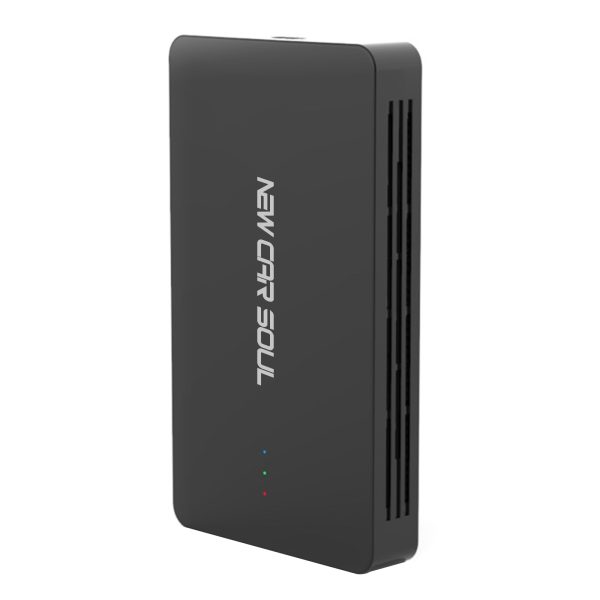
Wireless CarPlay + Android Auto + Netflix/YouTube streaming. The best-value AI Box for most drivers. 1-year warranty, lifetime OTA updates.
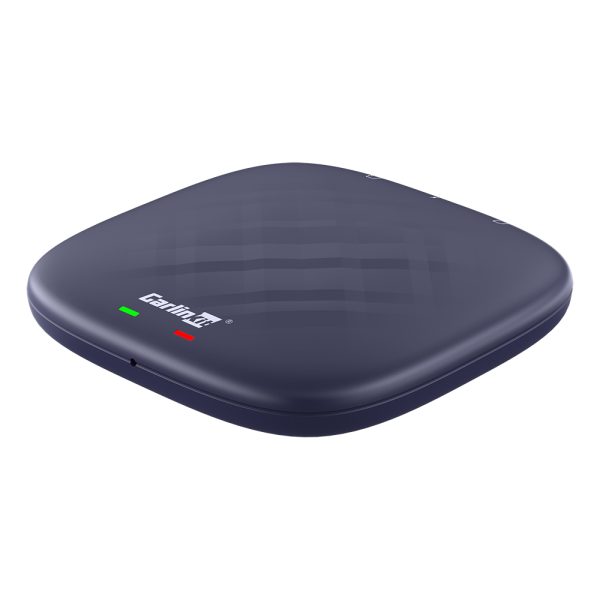
Full Android 13, Google Play Store, 8GB RAM. Install any app, stream anything. The premium choice for power users.
Frequently asked questions
No — Apple CarPlay blocks all video streaming apps. To watch Netflix on your car screen, you need a CarPlay AI Box that runs Android separately from CarPlay.
Video streaming on a driver-facing screen while moving is illegal in most jurisdictions and dangerous. AI Boxes include speed-lock features. Streaming is intended for parked vehicles or rear-seat entertainment.
Yes. Use your iPhone’s Personal Hotspot or a dedicated car Wi-Fi router. The AI Box connects to Wi-Fi exactly like a phone or tablet would.